
You can easily request health insurance for your international team with Remofirst. We partner with The Unisure Group, which is regulated by the UK Financial Conduct Authority and insured by Guardrisk Insurance Company.
You can learn more about Remofirst health insurance on our website.
How to issue insurance to your full-time employees
There are three simple ways how you can enroll your team members into RemoHealth insurance:
- During the onboarding of the new employee
- Through the employee's profile on the Remofirst platform
- Through the Benefits tab on your profile
Let's review all three options.
Option 1: Request RemoHealth when onboarding a new employee
See the guide here: How to add employees to your team on the Remofirst platform
Option 2. Request RemoHealth through the employee's profile
You can also request health insurance for your existing employees. To do so:
Step 1. Navigate to the Team section and select the employee
Step 2. Switch to the Benefits tab and click on the Add benefits button
Step 3. Select RemoHealth packages and click on the Next step button
You can also access the brochure with all information about RemoHealth, including pricing, by clicking on the following link on the platform (see the screenshot below)
- To learn more about each package, click on Info (i) icon near the package name.
Step 4. Select the package that you prefer for your employee.
Step 5. Provide the number of dependencies (if any) - from 0 to 10 members
Step 6. Click on the Add benefits button.
Step 4. Once you request RemoHealth for your employees, our team will invoice you for the cost of the package for 3 months. Select Approve.
Voila! You have requested health insurance for your employee. Until the request status is Created, you can edit it if needed. Click on the pen icon to do so.
If you have created the request by mistake or changed your mind, you can click on the Cancel button.
Option 3. Request RemoHealth through the Benefits tab
You can request health insurance for your employees through the Benefits tab as well. To do so:
Step 1. Navigate to the Benefits tab and select the Add benefit to request health insurance for your employee
Step 2. Choose an employee for whom you want to provide Remohealth
Step 3. Select RemoHealth packages and click on the Next step button
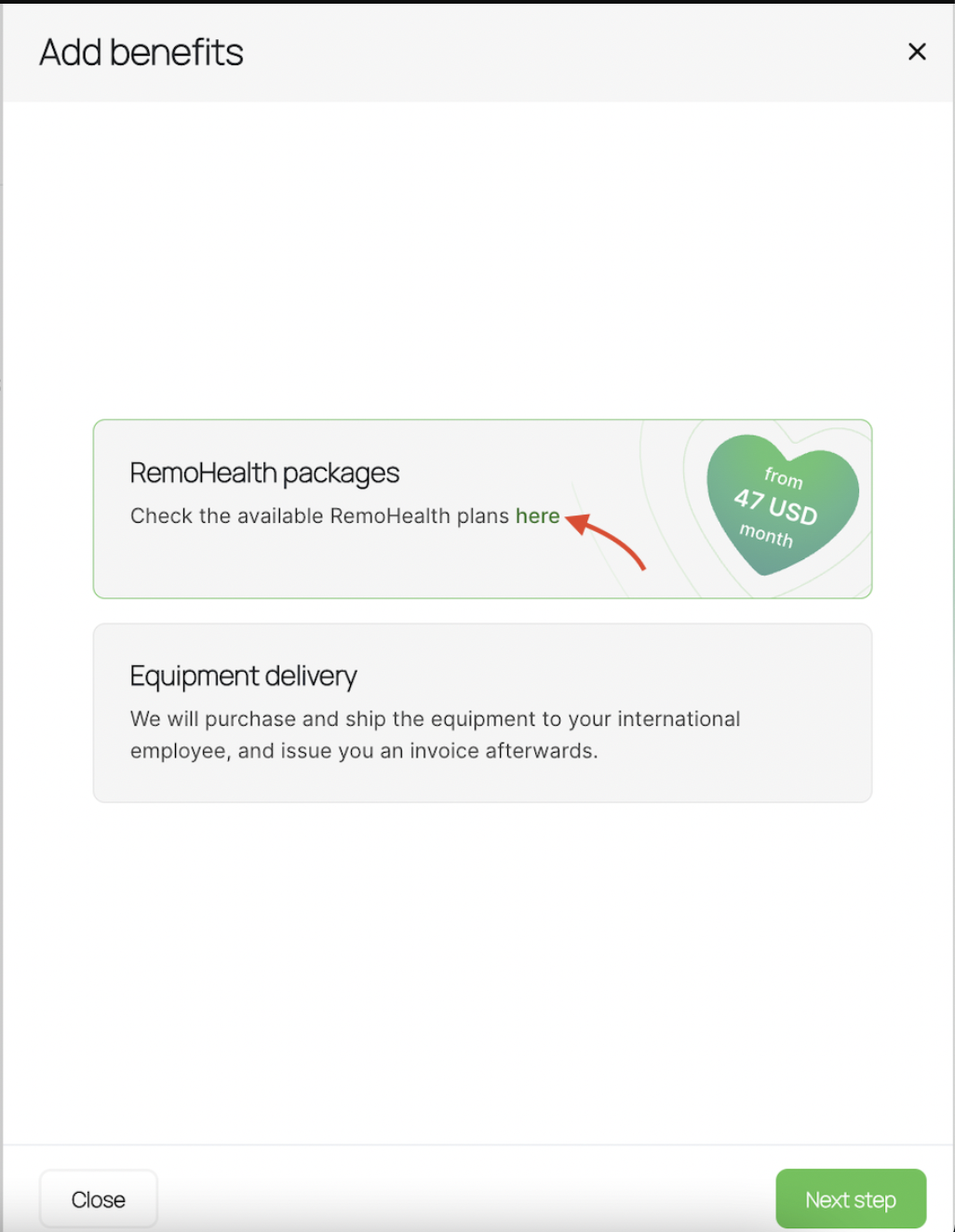
You can also access the brochure with all information about RemoHealth, including pricing, by clicking on the following link on the platform
To learn more about each package, click on Info (i) icon near the package name.
Step 4. Select the package that you prefer for your employee, add dependencies and click on the Add benefits button.
Step 4. Once you request RemoHealth for your employees, our team will invoice you for the cost of the package for 3 months. Select Approve.
Voila! You have requested health insurance for your employee. Until the request status is Created, you can edit it if needed. Click on the pen icon to do so.
If you have created the request by mistake or changed your mind, you can click on the Cancel button.
Comments
0 comments
Please sign in to leave a comment.