
This guide walks you through logging your work hours, submitting your timesheet, and staying informed when it is approved or rejected.
This article contains the following:
- Where to Access Timesheet
- Filling your Timesheet
- Editing Periods For Auto-generated Timesheets
- Saving and Submitting your Timesheet
- What happens next?
- Updating Timesheets after rejection
🕒 Where to Access Timesheets
Go to the Employee app.
On the left menu, click Timesheets.
Locate the "To Submit" section. The timesheets with the correct periods have been pre-created for you.
Locate the period you need to update or submit.
Please do not create a new timesheet. Just work on the existing period automatically created for you.
You can also watch a recorded tutorial in this Video: How to submit your timesheets.

✍️ How to Fill and Submit Your Timesheet
Step 1: Select the Period
Set the Start date and End date for the timesheet period.

Step 2: Add Your Hours
For each workday entry, please ensure you include the start time and finish time, the task type (such as Regular Hours, Break [Unpaid], Overtime, or On-call), and optionally, you can add a note like "Client meeting" or "Sync with team."
💡 Tip: Click “Show weekend” if you worked on weekends.

Step 3: Save or Submit
Click Save without submitting to come back later.

Please note that the client will not receive a notification, the timesheet will remain in a "To submit" status, and you can return at your convenience to make any necessary changes before submitting.

When you’re ready, click Submit to send it for approval.

Make sure to check everything before the submission.

Once submitted, the status will change from To submit to Pending.
Editing Periods For Auto-generated Timesheets
If your timesheet is auto-generated, you cannot edit the timesheet period.
Autogenerated timesheets are created automatically by the system based on country-based working schedule, so the period is fixed and cannot be modified manually.

Start and end date for auto-generated timesheets will be locked.


Notifications: What Happens Next?
You’ll receive email notifications when:
✅ Your timesheet is Approved by Client: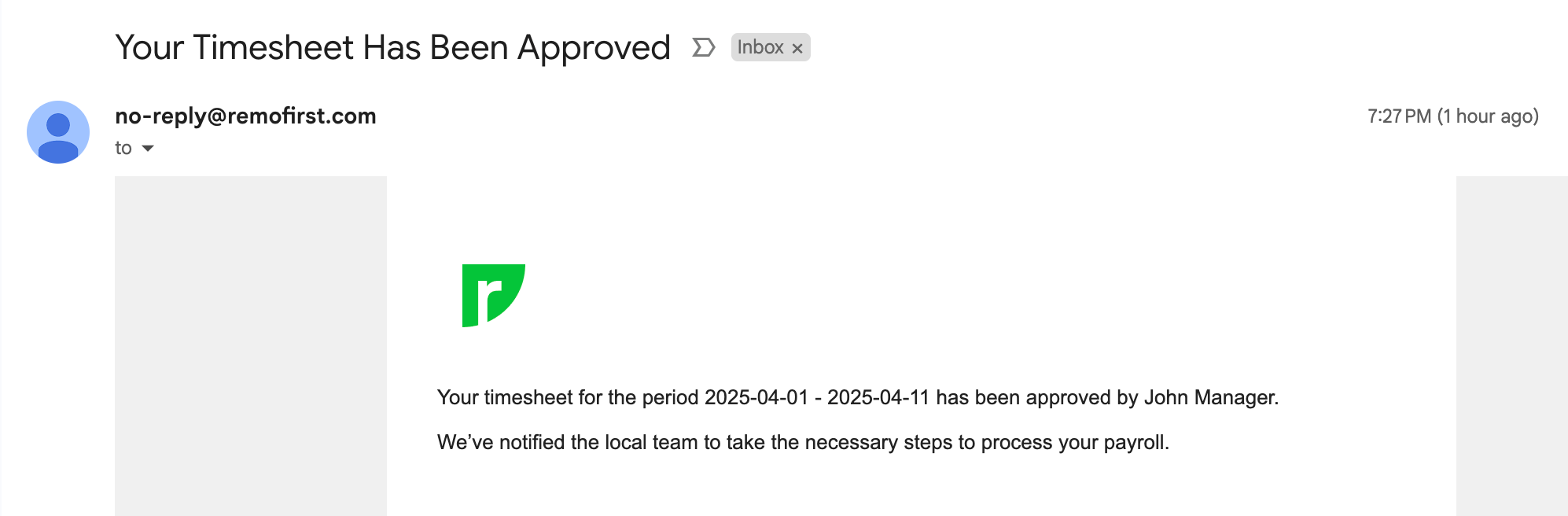

You will notice that the status of the Timesheet will be changed to Approved. Please note that they will be moved to the Approved tab.

❌ Your timesheet is Rejected by Client: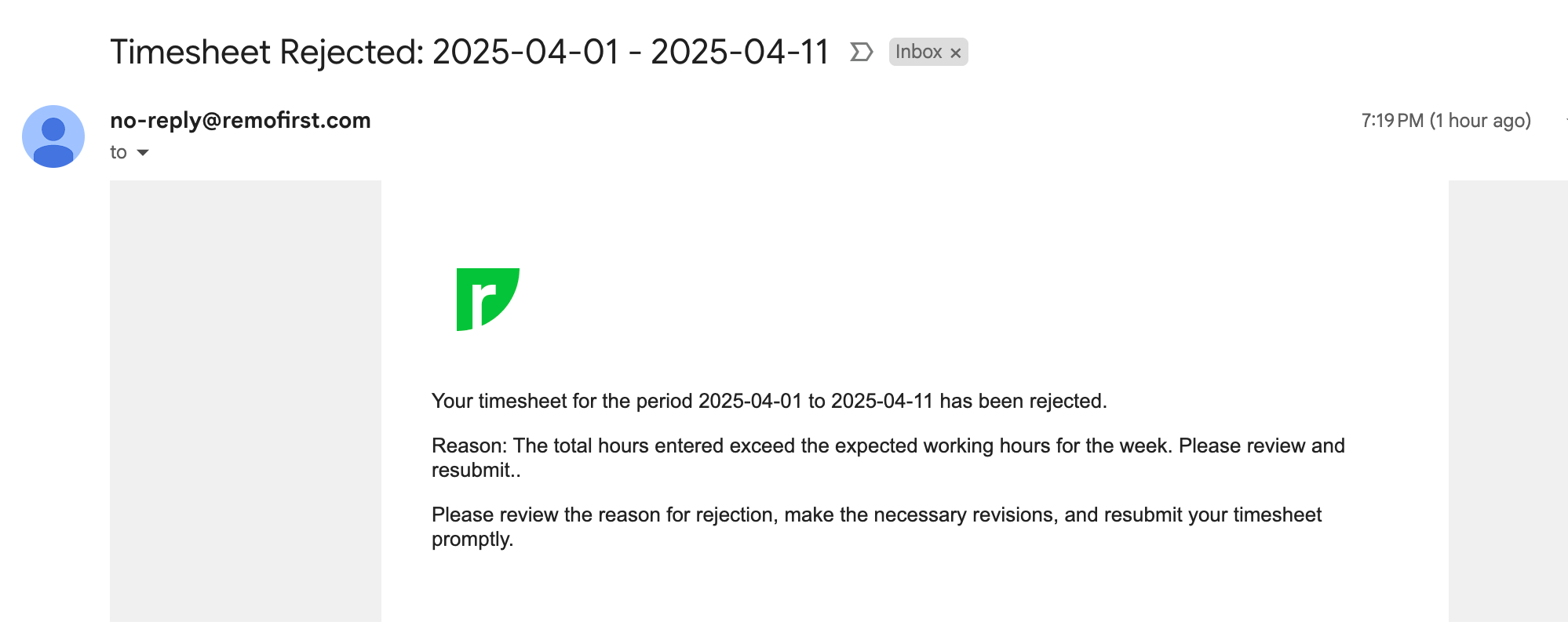

On the platform you will notice that the status of the Timesheet will be changed to Rejected with the reason indicated on the right. You will be required to review the Client’s feedback and update details based on that.
🔁 Updating Timesheets After Rejection
If your timesheet is rejected:
-
Go back to the Timesheet page.
-
Review the rejection reason and update based on the feedback.
Click Resubmit. Client will receive notification to review your timesheet.
Once approved, you will be notified via email and the status will be updated accordingly.


Comments
0 comments
Please sign in to leave a comment.